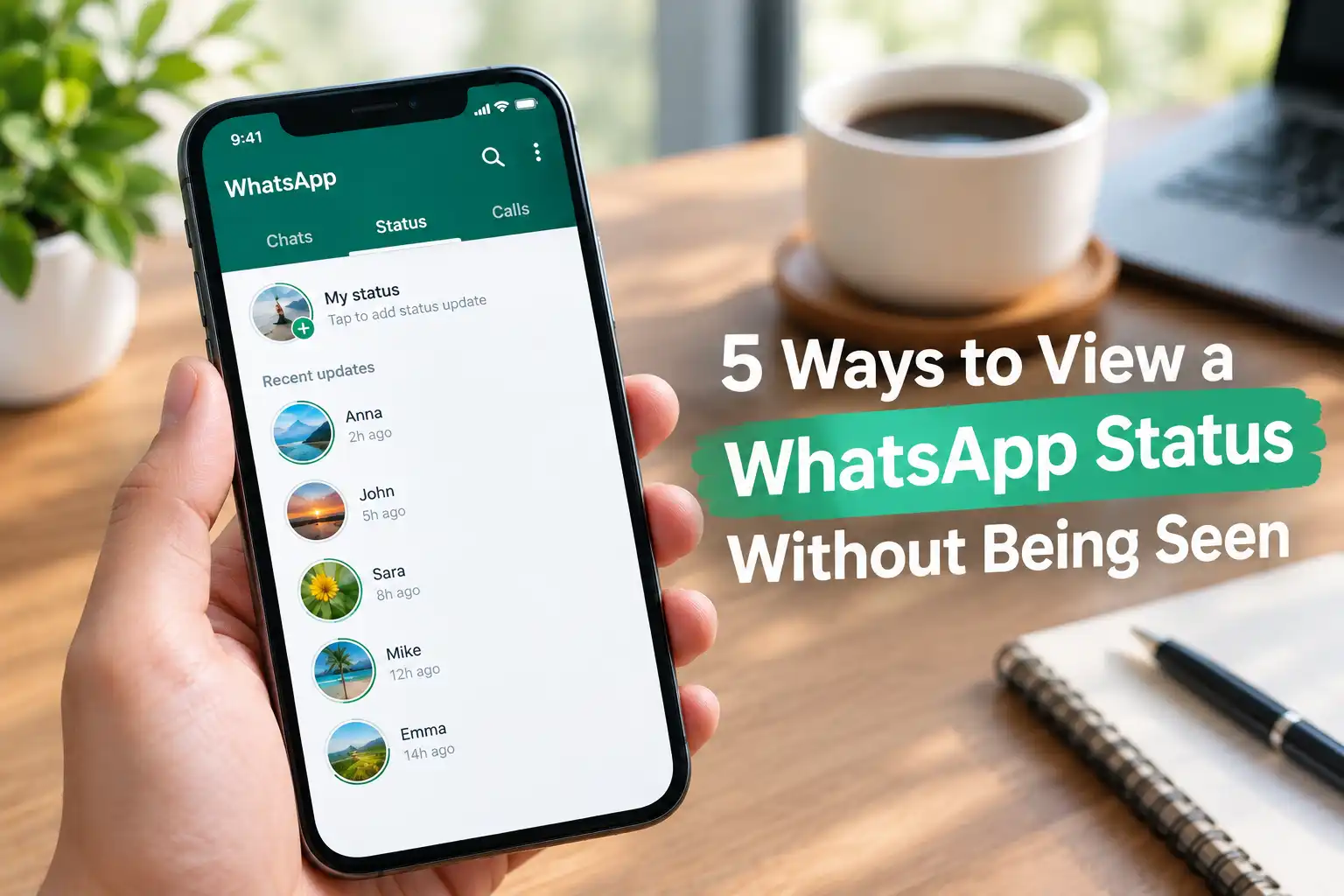
5 Ways to View a WhatsApp Status Without Being Seen
A WhatsApp status vanishes after 24 hours. The little grey checkmark next to your name in someone’s viewer list, though, tends to stick around in memory a lot longer. Some readers just want to scroll past an update quietly. Others manage a busy team chat and would rather not signal that they’re glued to their phone. Either way, this question comes up constantly: how do you look at a status without lighting up as a viewer?
I ran through every widely shared trick for this and kept only the ones that still hold up. A couple rely on nothing more than a menu WhatsApp already gives you. Others exploit small gaps in how the app syncs data, and those gaps can close the moment Meta pushes an update. Here’s a breakdown of five approaches, how each one actually performed, and where each one falls short.
Before You Try Any of This
Staying invisible while you browse a status isn’t the same thing as surveillance. WhatsApp itself offers switches for hiding your last-seen timestamp and disabling read receipts, and dodging the status viewer list sits well within that same toolbox. Treat these methods as ways to protect your own browsing habits, not as a workaround for monitoring someone who’d rather not be watched. Keep that line in mind, and everything below stays firmly on the “handy trick” side of the fence.
Method 1: Switch Off Read Receipts
This route is the most official one on the list, since WhatsApp designed the setting for exactly this outcome. Read receipts normally control those blue double-tick marks under your messages, but the same toggle quietly removes your name from anyone’s status viewer list too.
To turn it off:
- Launch WhatsApp.
- Tap Settings, then Privacy.
- Locate Read Receipts and flip the switch off.
The change applies immediately, and there’s nothing else to configure. One trade-off comes attached, though: the visibility disappears in both directions. You’ll stop seeing who read your own messages or viewed your own status, right along with everyone losing sight of you. I’d treat this as a solid default setting rather than a targeted fix, since it applies across your entire account, not just one contact.
Method 2: Lean on Airplane Mode
This trick takes advantage of a short lag between opening content and WhatsApp reporting that activity back to its servers. Status media often loads into a temporary cache on your phone first, which means browsing offline can let you view it before the “seen” flag ever gets sent.
The sequence looks like this:
- Open WhatsApp with your connection still active, so recent statuses finish loading into the cache.
- Flip on Airplane Mode.
- Browse the status you’re curious about.
- Force-close WhatsApp by swiping it out of your recent apps.
- Turn Airplane Mode back off.
Results here were mixed in my testing. Statuses that had already loaded into your feed worked fine, but fresh uploads your phone hadn’t cached yet simply failed to open. I’d save this one for occasional use rather than a daily routine, because WhatsApp typically catches up and marks the status as read the instant you reconnect while the app is still running.
Method 3: Dig Into the Hidden Media Folder
On Android, WhatsApp quietly downloads every status photo and video into a hidden folder before you ever tap to open it inside the app. Since that download happens through a background process, opening the raw file straight from storage never triggers the “seen” indicator at all.
Here’s how to reach it:
- Open your phone’s File Manager.
- Turn on Show Hidden Files somewhere in its settings menu.
- Head to Internal Storage > WhatsApp > Media > .Statuses.
- Open whichever file you want to view.
This is genuinely one of the most private options on this list, since the app itself never registers a viewing event. The limitation is platform-specific: iPhone’s file sandbox blocks this trick entirely, so it’s Android-only territory. Folder paths also shift occasionally between Android versions and WhatsApp releases, so a little poking around may be needed if the usual location comes up empty.
Method 4: Run WhatsApp Web in a Private Window
WhatsApp Web mirrors your phone’s account inside a browser tab, and loading it in Incognito or Private mode wipes out any local trace once you’re done. Cutting your internet connection during the session adds another layer of insurance.
- Open an Incognito or Private browser window on a computer.
- Scan the QR code to sign into web.whatsapp.com.
- Click the Status tab to view recent uploads.
- Cut your Wi-Fi connection or unplug the Ethernet cable.
- View the status you want to check while offline.
- Close the Incognito window once you’re finished.
Out of everything I tested, this combination gave the most consistent results. The private window discards cookies and history the moment it closes, and going offline stops the read confirmation from reaching WhatsApp’s servers in real time. The only real drawback is convenience — you’ll need a laptop or desktop nearby, and status previews on the desktop version sometimes render at a lower resolution than the mobile app shows.
Method 5: Simply Disconnect Before Opening the App
Think of this as the airplane-mode trick without the extra toggle, and it works the same way on both Android and iPhone. Instead of switching to a dedicated flight setting, just cut your data connection entirely before launching WhatsApp.
- Turn off both Wi-Fi and mobile data.
- Open WhatsApp and browse the status you’re interested in.
- Stay offline until you’re finished browsing.
- Reconnect only after closing the app completely.
This buys a short window of anonymous viewing, though WhatsApp almost always reports the activity the second you go back online and reopen the app. Save it for a quick, one-time check rather than a habit, since the “seen” mark tends to catch up sooner or later regardless.
Quick Verdict
| Specification | Rating (1-10) |
|---|---|
| Reliability across app updates | 6 |
| Ease of setup | 8 |
| Works on both Android and iPhone | 5 |
| Privacy protection for you | 9 |
| Long-term convenience | 6 |
| Overall Score | 7 |
Pros and Cons
Pros
- Relies entirely on privacy controls already built into WhatsApp, with zero third-party apps involved.
- A couple of methods, like Incognito browsing and the hidden folder trick, leave no trace whatsoever.
- Costs nothing and takes only a few minutes to set up.
Cons
- Nothing here is permanent, since WhatsApp periodically changes how its sync process behaves.
- The hidden-folder approach only works for Android users.
- Disabling read receipts also blocks your own visibility into who’s reading your messages and status.
- Offline-based tricks demand that you stay disconnected for the entire viewing session, which limits multitasking.
Final Thoughts
None of these tricks involve hacking WhatsApp or bypassing its security in any real sense. Every one of them simply works around existing privacy settings, sync delays, or offline windows the app itself creates. If I had to pick a combination, I’d keep read receipts off as a daily default and switch to the Incognito-plus-offline method whenever a one-time discreet check comes up. That pairing delivered the steadiest results without costing much convenience.
WhatsApp tends to tweak its syncing behavior every so often, so a method that works flawlessly today could need adjusting after a future update. Bookmark this page and check back if any of these steps stop behaving the way they’re described here.