Turn Off iPhone App Tracking: The Privacy Setting Most People Never Touch
Your iPhone carries a hidden ID number. Advertisers use it to follow you from app to app.
Apple gave you a switch to shut this down years ago. Most users still haven’t flipped it. Here’s what that switch does, why it matters, and how to turn it on in under a minute.
What Is the IDFA, and Why Does It Matter?
Every iPhone contains a unique code called the Identifier for Advertisers, or IDFA. Apps read this code to build a profile of your behavior. That profile follows you across apps and websites. A shoe ad you tap once can chase you through your weather app, your news feed, and your social media timeline for weeks afterward.
Apple introduced a countermeasure in
iOS 14 with the App Tracking Transparency (ATT) feature. It puts the decision back in your hands: apps must now ask permission before they can use your IDFA to track you elsewhere.
How App Tracking Transparency Actually Works
ATT does not erase your identity online. It closes one specific channel: the link between your device’s advertising ID and your activity in other apps or on other websites. Once you deny that link, an app loses access to your IDFA and to other identifiers, like location data, that advertisers use to build targeted profiles.
Apple unveiled ATT at its 2020 developer conference and shipped it to users in
iOS 14.5 later that year. The company has expanded on this privacy push in every release since. iOS 17, for example, let users pick a non-Google search engine for private Safari tabs and made stolen devices harder to raid for sensitive data.
How to Block Tracking on New Apps
The first time you open a freshly downloaded app, a pop-up asks whether it can track you across other companies’ apps and sites. You get two choices:
- Ask App Not to Track — blocks the tracking request
- Allow — grants tracking permission
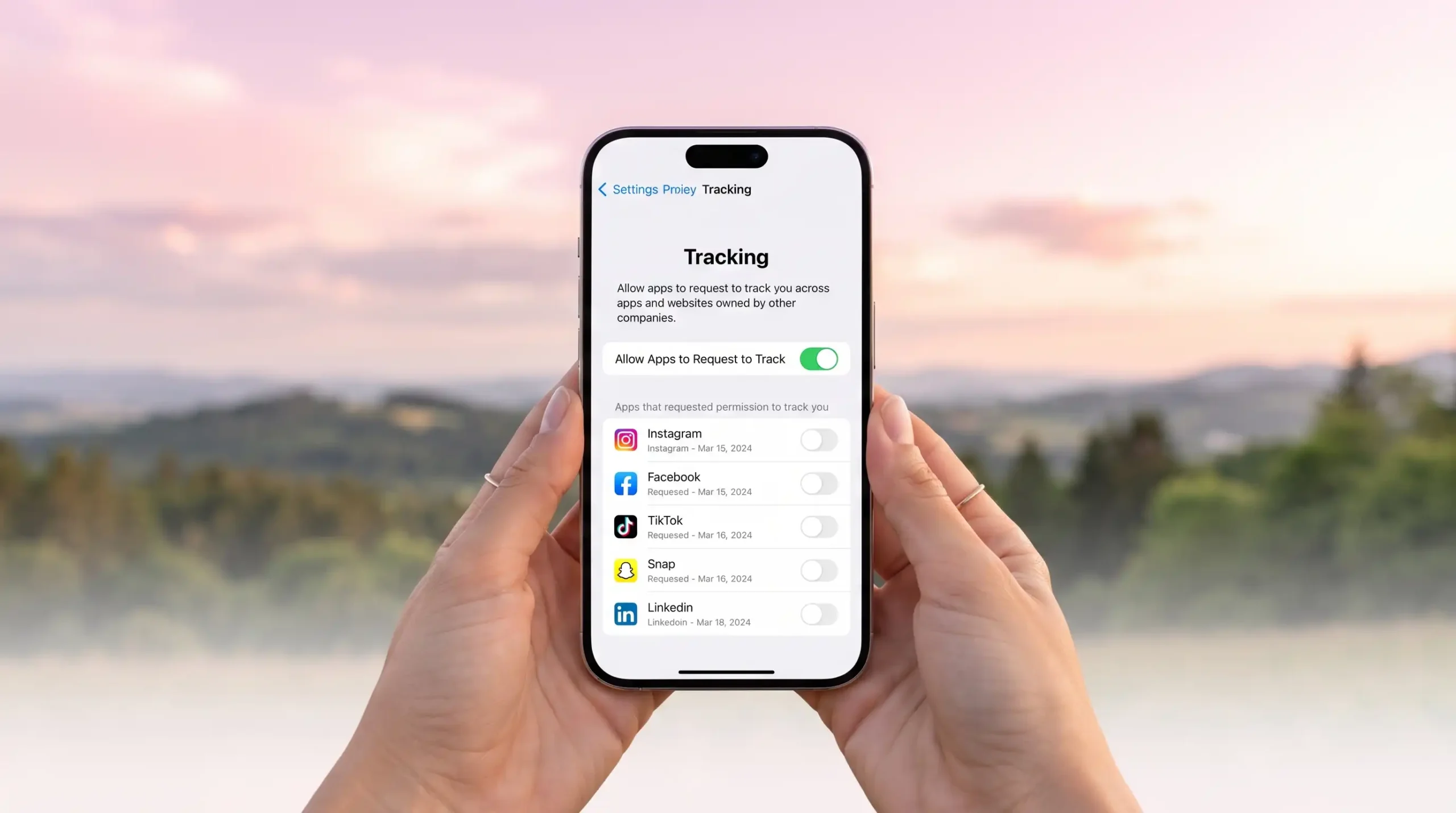
You can also skip these pop-ups entirely. Go to
Settings > Privacy & Security > Tracking, then turn off
Allow Apps to Request to Track. Every app now gets an automatic “no” the moment it asks. Ads will still appear, but they’ll trend generic rather than eerily specific.
How to Block Tracking on Apps You Already Installed
Already granted permission to an app and want to reverse it? Here’s the way:
- Open Settings
- Privacy & Security
- Tracking
A list shows every app that has requested tracking access. Toggle off any app you want to cut loose.
Apple requires every developer to request permission before tracking a user. If Apple catches a developer tracking someone who said no, that developer must fix the practice or risk removal from the App Store.
The Real Cost to the Ad Industry
ATT reshaped mobile advertising almost overnight. Privacy advocates praised the change. Companies that depend on targeted ads pushed back hard, and Meta led that criticism publicly.
The numbers back up the industry’s alarm. A 2021 Financial Times investigation estimated that
Facebook, Snapchat, Twitter, and YouTube lost a combined $9.85 billion in ad revenue because Apple users opted out of tracking.
My Take: Is Flipping This Switch Worth It?
I’ve tested this setting across several iPhones over multiple iOS versions, and the pattern holds every time: ad relevance drops noticeably within a day or two of disabling tracking. That’s the trade-off in plain terms — you lose some ad personalization and gain real control over who reads your behavioral data.
I recommend switching ATT off as a default setting for nearly everyone. The apps I actually want tracking data from — say, a fitness app syncing with a smartwatch I own — are rare enough that I grant permission case by case instead of leaving the door open for every app I install. That approach gives me most of the privacy benefit without breaking the few integrations I care about.
Does This Make You Untraceable? No.
Denying an app your IDFA only cuts off one path. It doesn’t stop tracking through your account logins, your IP address, or fingerprinting techniques that don’t rely on
Apple’s advertising ID at all. Treat ATT as one solid layer in a broader privacy habit, not a complete shield.
Quick Verdict
| Specification |
Rating (1–10) |
| Ease of setup |
10 |
| Privacy impact |
8 |
| Effect on ad relevance |
7 (fewer targeted ads, more generic ones) |
| Coverage (does it stop all tracking?) |
5 |
| Device performance impact |
10 (none) |
| Overall |
8.5 |
Pros and Cons
Pros
- Takes under a minute to enable, with no technical skill required
- Cuts off one of the largest tracking pipelines used by advertisers
- Works retroactively on apps you already granted permission to
- Costs nothing and requires no extra hardware or software
- Backed by Apple’s App Store enforcement against violators
Cons
- Doesn’t block tracking methods that skip the IDFA entirely
- Ads become more generic, which some users find less useful
- Requires a manual visit to Settings; it isn’t on by default for every app automatically
- Per-app tracking permissions must be reviewed individually for full control