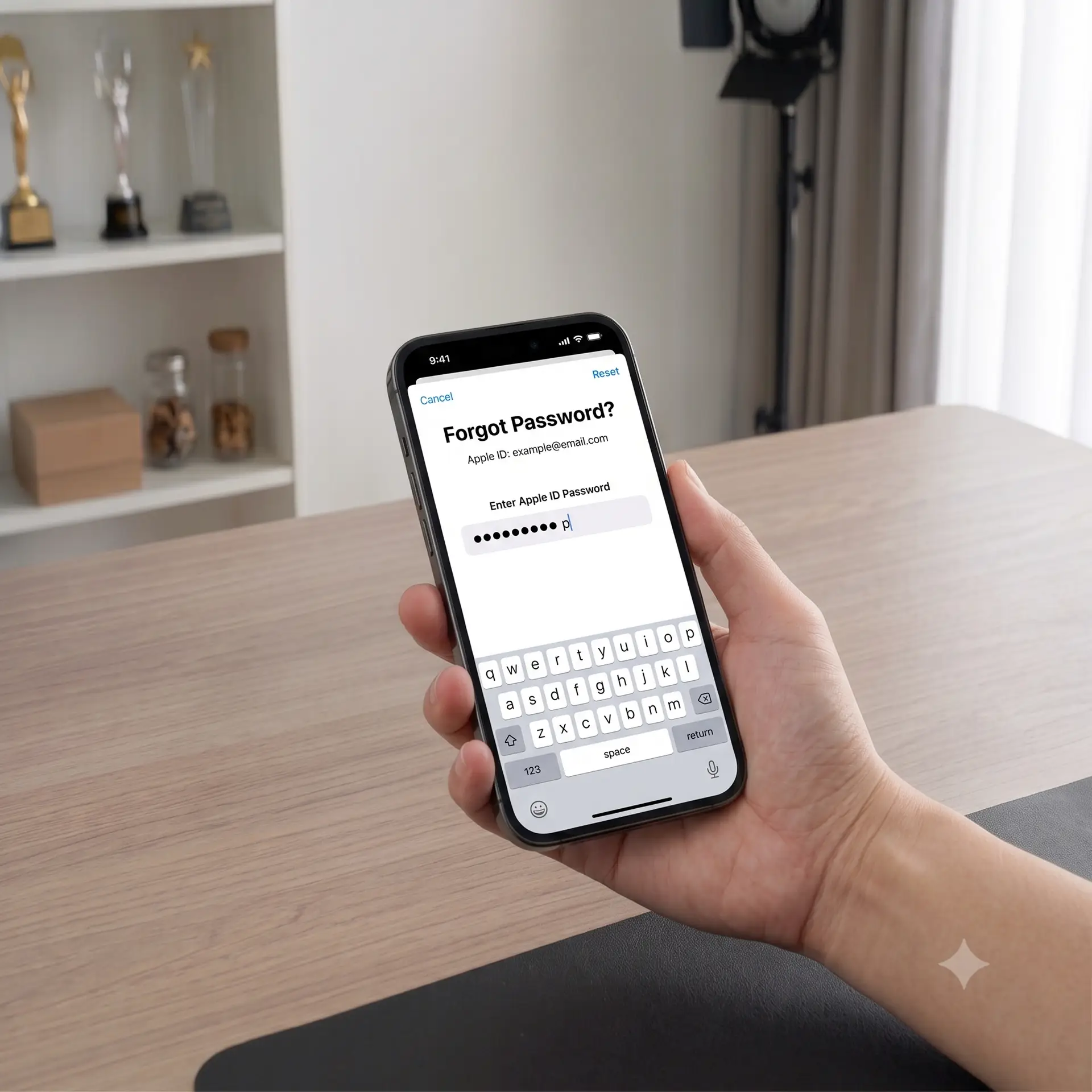
I used to work a help desk. Not for Apple, but for a university IT department where half my ticket queue, every single week, was some version of “I can’t get into my Apple ID.” So when people ask me for the “official steps,” I always give them — but I also tell them the part that actually determines whether they get back in today or spend three days locked out of their own phone.
Here’s the part most guides skip: the method that works for you depends entirely on which device you still have access to, not which method is “best.” Pick the wrong one first and you’ll waste time bouncing between menus that dead-end because you don’t have the second factor they’re quietly expecting.
So instead of listing every possible path in order, let’s sort this by your actual situation.
First, figure out which “you” you are
Before touching Settings, answer one question: do you currently have a signed-in Apple device within arm’s reach — iPhone, iPad, Apple Watch, or Mac?
Yes, I have one → Go to the “Trusted Device” method below. This is the fastest route, usually under two minutes.
No, all my Apple devices are gone, lost, or wiped → Skip to “The Borrowed Device Method.”
I’m mid-setup on a brand-new device → Skip to “The New Device Shortcut.”
None of the above → Go straight to “The Web Fallback” and read the warning under it before you start.
The Trusted Device Method (fastest)
If you’re holding a signed-in iPhone or iPad:
Open Settings
Tap your name at the top
Tap Sign-In & Security
Tap Change Password
If you’re on a Mac, the steps are almost the exact same. Head to the Apple menu > System Settings, click your name, and choose Sign-In & Security followed by Change Password. Because the Mac itself is recognized as a trusted second factor, the reset goes through seamlessly.
The New Device Shortcut
Setting up a new iPhone, iPad, or Mac and blanking on your password? Don’t fight through the sign-in screen. Instead:
If the sign-in prompt pops up mid-setup, look for a smaller option tucked below the password field — it’s usually worded something like “no account yet” or “can’t recall the password”
Ignore the login step for now and let the device finish setting up completely
Once you’re on the home screen, try opening anything that needs your Apple Account — on iPhone or iPad, Messages usually triggers it fastest; on Mac, you’ll head back into Sign-In & Security instead. That very first login attempt is what re-triggers the reset flow, and this time the device itself already counts as proof of identity
This is the one almost nobody knows about, and it’s the one I used most often at the help desk for students who’d lost or broken their only device.
Download the Apple Support app on any borrowed iPhone or iPad (or use one at an Apple Store)
Tap Reset Password under Support Tools
Tap Help Someone Else
Input Apple Account email or your phone number
Follow the prompts
The “Help Someone Else” option exists specifically so you don’t need your own hardware to prove who you are — it shifts verification to your email, phone number, and security questions instead.
The Web Fallback
If you truly have no device, go to iforgot.apple.com and follow the prompts.
The warning: this is genuinely the slowest option, and it’s the one most likely to trigger Apple’s account recovery hold — a security waiting period that can stretch to several days if you can’t verify enough identity signals at once. I’ve seen this frustrate people who assumed the website would be the quick option because it felt the most “official.” It’s actually the opposite.
The mistake that turns a 2-minute fix into a week-long lockout
Here’s my actual opinion, earned from watching this go wrong repeatedly: the password reset isn’t the risky part — what you do in the ten minutes after is.
Once you change your Apple Account password on one device, every other device signed into that same account will silently log itself out of iCloud, iMessage, and FaceTime until you re-enter the new password. They reset the password on their iPhone, feel relieved, and move on with their day — then two hours later their Mac stops syncing iMessages, their iPad stops backing up, and they assume something’s broken. It isn’t broken. All that’s left is to enter your new password. However, if you happen to forget it again an hour later (a surprisingly common occurrence), you’re forced to restart the whole process—only now it affects multiple devices simultaneously.
My actual advice: the moment you finish resetting, go device by device — right then, not later — and log back in everywhere while the new password is still in your short-term memory. It sounds obvious written down. when you just want to reply to a text.
The upgrade nobody does until after they’ve been locked out
If you’ve made it this far because you actually got locked out, do one more thing before you close this tab: turn on a passkey or set up a password manager for this account specifically. Apple Account recovery exists because passwords are forgettable by design — they’re meant to be complex enough that memory isn’t a reliable backup plan. A password manager removes that failure point entirely.