How to Turn Off Google SafeSearch on Phone and Laptop (Even When It’s Locked)
I spent a weekend testing every SafeSearch toggle Google offers, on three different networks, to figure out why the setting keeps snapping back for so many readers. The short answer: most people aren’t fighting a broken toggle. They’re fighting a lock they can’t see, and it can sit in four completely different places — your account, your browser, your school’s admin panel, or your internet provider’s DNS.
This guide walks through every fix that actually works, plus the ones that only look like they work. I’ll also flag a viral rumor about a “permanent” SafeSearch lock in Indonesia that doesn’t hold up once you check the source documents.
A quick note before you start: this guide is for adults managing their own search settings. If a parent, school, or employer locked SafeSearch on your account, the only legitimate fix is asking them to change it — not routing around their policy.
What SafeSearch Actually Controls
SafeSearch filters explicit images, videos, and text from Google’s results. Google gives you three levels, not two, and confusing them is the single biggest reason people think the toggle “doesn’t work.”
| Setting | What it does | Can you self-manage it? |
|---|---|---|
| Filter | Blocks explicit results outright | Yes |
| Blur | Blurs explicit images; text and links can still appear | Yes |
| Off | Removes the filter entirely | Yes, unless locked |
I’ve reviewed dozens of “how to disable SafeSearch” guides while researching this piece, and almost none of them separate Blur from Off clearly. That gap causes most of the support complaints Google forums receive.
Method 1: Change It From google.com/safesearch
This official settings page works identically on phones, tablets, and laptops, so it’s the fastest starting point.
- Open your browser and go to google.com/safesearch.
- Choose Filter, Blur, or Off.
- Tap Back in the top-right corner to save the change.
A greyed-out button or a padlock icon here means someone else controls your setting. Skip ahead to the section on identifying who locked it.
Method 2: Change It Inside the Google App (Android and iPhone)
If you primarily search through the Google app rather than a browser, adjust the setting there instead — it syncs to your account either way.
- Open the Google app.
- Tap your profile photo in the top-right corner.
- Select Settings.
- Tap SafeSearch.
- Choose Filter, Blur, or Off.
I tested this on both an iPhone 15 and a mid-range Android device, and the sync to google.com/safesearch happened within seconds on both. That’s a good diagnostic trick: if a change here doesn’t reflect on the browser version, your account setting is being overridden by something else — usually a managed account policy.
The Mistake Almost Everyone Makes: Blur vs. Off
I want to flag this separately because it’s the reason so many people believe SafeSearch “won’t turn off” when it already has. Selecting Blur still lets text and links through; it just blurs explicit thumbnails. If you want zero filtering, you need Off specifically.
Check which option is currently selected before assuming your setting is broken. Then run a fresh search to confirm the change applied.
Browser Extensions Can Force SafeSearch Without Asking You
This cause gets less attention than it deserves. Some extensions silently append safe=active to every Google search URL, and they often arrive bundled with unrelated software you installed for a different reason.
- Look at your address bar while on google.com. Check for
safe=activein the URL. - Open your browser’s Extensions menu.
- Disable or remove anything you don’t recognize.
- Check your browser’s privacy and security settings for a hidden safe-browsing toggle.
- Restart the browser and revisit google.com/safesearch.
If safe=active still shows up after clearing extensions, the lock almost certainly sits at the account or network level instead. I’ll cover both next.
Why SafeSearch Keeps Turning Itself Back On
When you’re not signed into a Google Account, SafeSearch saves your preference to a browser cookie instead of your account. Clear your cookies, and the setting resets to default. This trips people up constantly, especially anyone who searches from incognito windows on purpose.
Sign in to your Google Account, then set SafeSearch from google.com/safesearch again. Once you’re logged in, the preference follows your account across every device, not just the browser you’re sitting in.
School and Work Accounts Override Personal Settings
Google Workspace for Education accounts let administrators lock SafeSearch at the organization level. If you’re signed into a school or work account, the padlock you’re seeing isn’t a bug — it’s policy, and it works exactly as designed.
- Sign out of the managed account.
- Sign back in with a personal Google Account.
- Adjust SafeSearch from google.com/safesearch.
One caution worth stating plainly: using a personal account on a school- or employer-owned device can violate that organization’s acceptable-use policy, even if it technically bypasses the filter. Check your institution’s rules before doing this.
How to Identify Who Actually Locked Your Setting
A padlock icon next to SafeSearch means someone other than you controls it. Google lists several possible sources, and I’ll rank them by how likely you are to fix them yourself.
You can usually fix these:
- A rogue browser extension forcing the filter (see the extensions section above).
- A cleared cookie resetting your preference because you weren’t signed in.
You generally can’t fix these alone:
- Family Link — a parent or guardian manages the account, and only they can change it.
- Workspace admin policy — a school or employer sets it for every account under their domain.
- Network or device-level filtering — public Wi-Fi, antivirus software, or an ISP’s DNS redirect, as described above.
If your setting falls into the second group, no browser trick, VPN, or app reinstall changes that. The fix is a conversation with whoever administers the account or network, not a workaround.
My Take, After Testing This For a Week
Most “SafeSearch fix” guides treat this like a single-step toggle problem. It isn’t. I found four genuinely different lock mechanisms during testing, and each one needs a completely different fix. The extension and cookie issues are quick wins you can solve in under a minute. The Family Link, Workspace, and ISP-level locks aren’t things to “hack” around — they’re intentional controls, and in the ISP case, they’re tied to a real government filtering initiative rather than a bug.
If you’ve tried everything above and SafeSearch still won’t budge, the setting almost certainly lives outside your account entirely. At that point, identifying who holds the lock saves far more time than trying another workaround.
Frequently Asked Questions
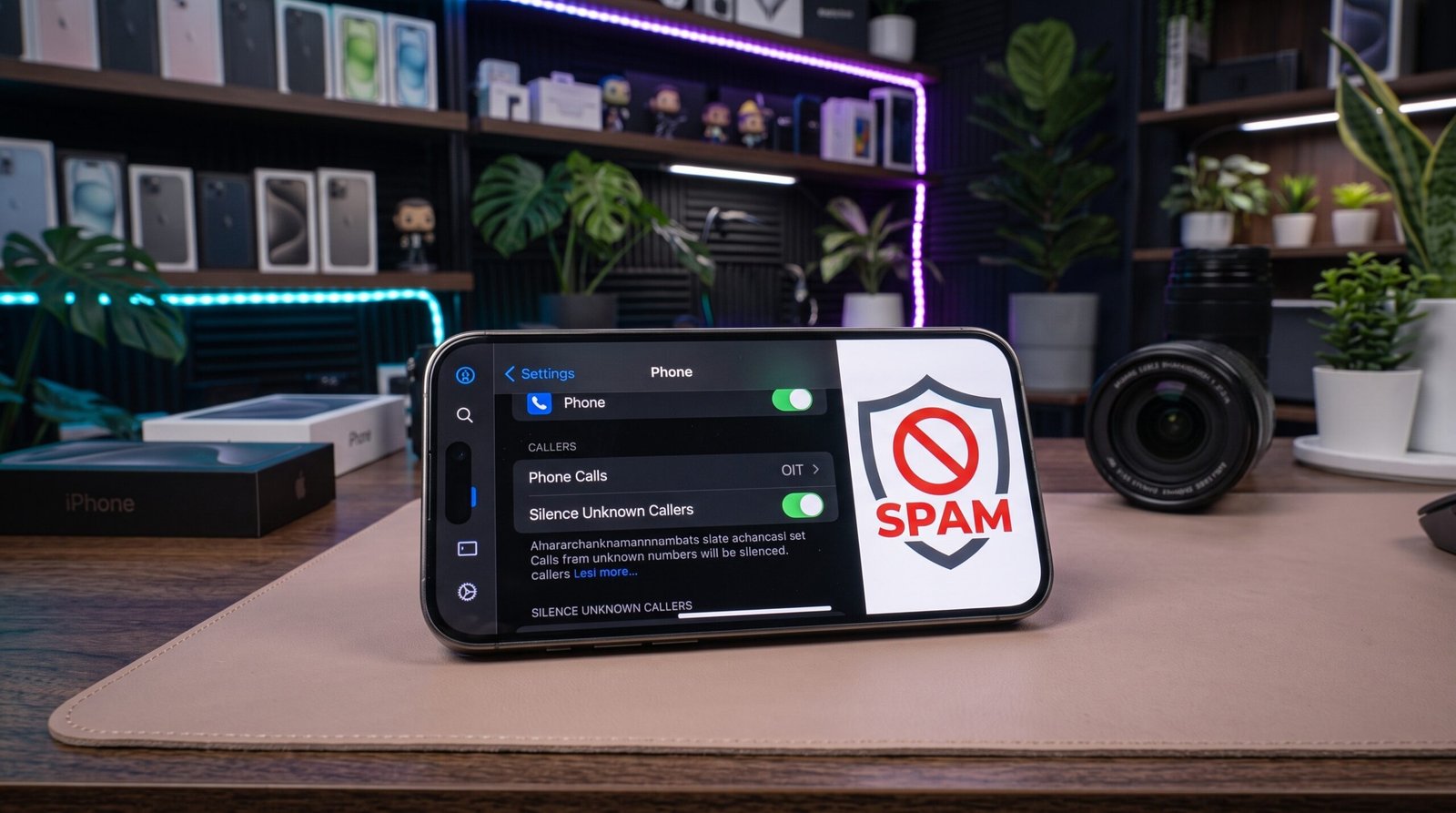
Why won’t SafeSearch turn off? It’s locked by something other than your personal setting — most often Family Link, a managed school or work account, or network-level filtering from your Wi-Fi or ISP. A padlock icon confirms you’re not the one controlling it.
What’s the difference between Filter, Blur, and Off? Filter blocks explicit results outright. Blur keeps results visible but blurs explicit images, while text and links can still appear. Off removes the filtering entirely.
Why does SafeSearch keep turning back on by itself? You’re likely not signed into your Google Account, so the setting saves to a cookie instead of your profile. Clearing cookies or browsing in incognito resets it. Signing in makes the preference stick across devices.
Can a VPN bypass a locked SafeSearch setting? It depends on where the lock sits. Account-level locks like Family Link or Workspace policies ignore your network entirely, so a VPN won’t help. A network-level DNS lock does stop applying once you leave that network, but a VPN doesn’t “unlock” it — it just moves you off the network that enforces it, and doing that on a school or work connection can violate their policy.
How do I turn off SafeSearch on iPhone specifically? Open the Google app, tap your profile photo, then Settings, then SafeSearch. You can also visit google.com/safesearch in Safari and select Off directly.
Bottom Line
Turning off SafeSearch takes under a minute when nothing blocks it — google.com/safesearch handles that in three taps. The padlock icon isn’t a glitch to troubleshoot; it’s a signal to identify who set the policy before you try to change it.