Most Android slowdowns have nothing to do with old hardware. Small settings pile up quietly, and together they wear down a phone that should still feel quick. When I test a new phone, I run a short audit before anything else. It takes about eight minutes. I check eight switches, and each one falls into one of three goals: saving battery, protecting privacy, or making daily use less annoying. This guide walks through that same checklist.
Menu names differ between brands and Android versions. Can’t find an option? Type its name into the search bar at the top of Settings.
Why an Audit Beats a “Booster” App
Phone makers ship devices with generous defaults. Location scans, device searches, and data reports all run from day one. Each one is harmless alone. Stacked together, they nibble at your battery every hour. Cleaner and booster apps promise a quick fix, but I avoid them. Many run their own background services, so they add the exact load they claim to remove. The built-in switches below cost nothing and carry no risk.Goal 1: Save Battery and Memory
Check Which Apps Run in the Background
Closed apps often stay alive. They hold RAM and sometimes keep syncing. Budget phones feel this first, because they have less memory to spare. Follow this path on many phones:- Open Settings and tap About phone.
- Select Software information.
- Go back and scroll to Developer options.
- Open Background check and review the list.
- Stop the apps you never use.
Turn On Battery Saver With a Trigger
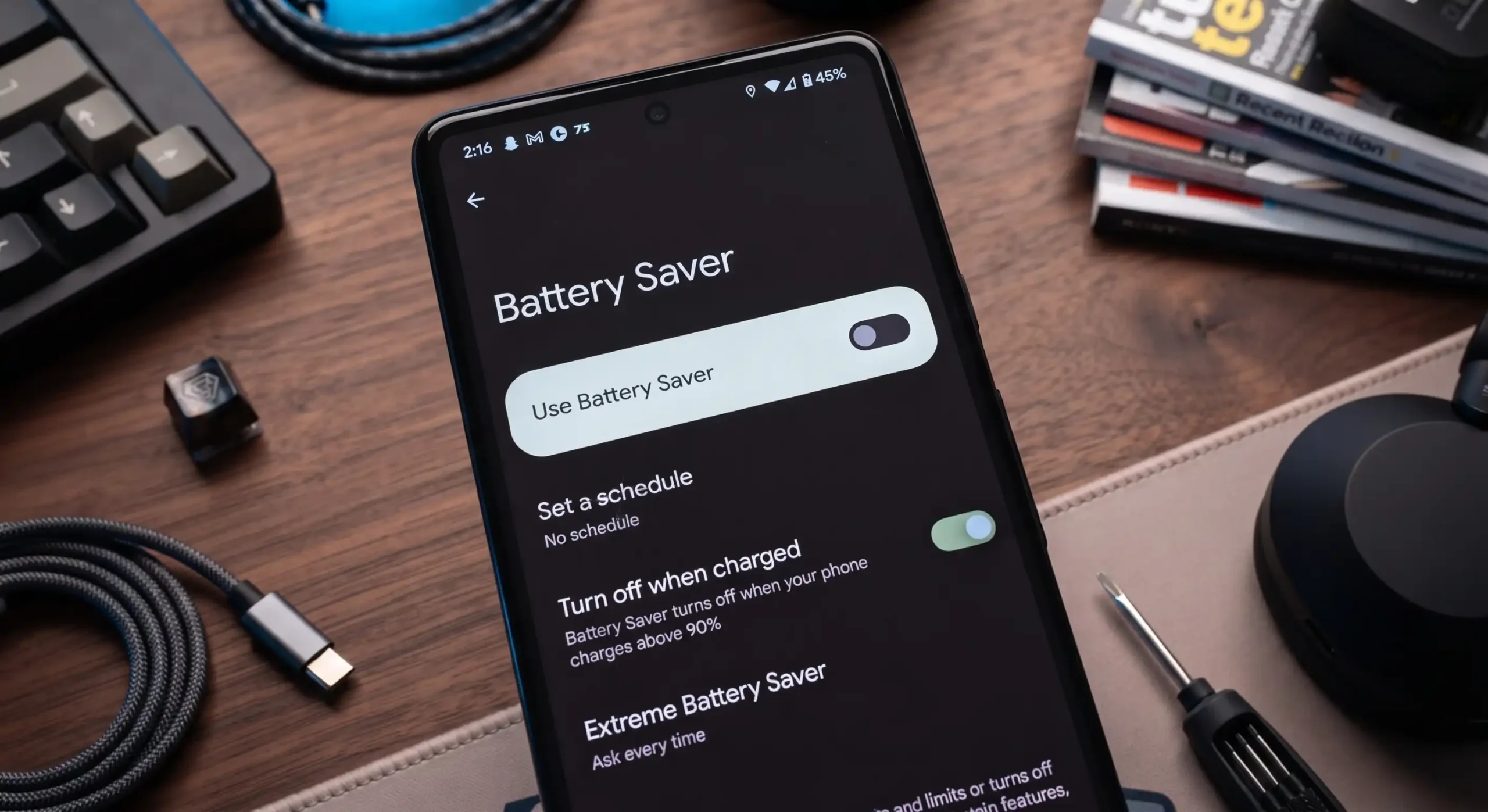
Battery Saver trims background work and softens some visual effects. It works best when it starts on its own. Try this setup:- Open Settings and tap Battery Saver (some brands say Battery or Power Saving).
- Tap Schedule and reminders if you see it.
- Pick a percentage for the automatic start.
Stop Nearby Device Scanning
This feature keeps searching for phones, watches, and speakers around you. That constant searching keeps your radios busy. Here is how to pause it:- Open Settings and tap Connections.
- Choose More connection settings.
- Switch off Nearby device scanning.
Rein In Location Scanning
Improve Accuracy uses Wi-Fi and Bluetooth signals to sharpen your position. It shines indoors, where GPS struggles. It also scans all day, and that drains power. To adjust it:- Open Settings and tap Location.
- Select Improve accuracy.
- Toggle Wi-Fi scanning and Bluetooth scanning.
Goal 2: Protect Your Privacy
Hide Your PIN Taps
Enhanced PIN Privacy removes the tap animation while you type your PIN. A stranger behind you sees far less. Enable it here:- Head into Settings, then move down the list to find Security & privacy.
- Choose Device unlock.
- On gear icon tap and next to Screen lock.
- Turn on Enhanced PIN Privacy.
Opt Out of Ad Personalization
This setting changes how ads target you. It does not remove ads. Plenty of people miss that difference. Follow these steps:- Open the Google app or Chrome.
- Look to the upper-right and open the three-dot menu.
- Open Ads and choose Opt out of Ads Personalization.
Switch Off Usage and Diagnostics
Your phone shares technical reports with Google or the manufacturer. Those reports help engineers fix bugs. They also use a sliver of data and battery. To disable it:- Open Settings and select Google.
- On the three dot menu at the top right Tap it.
- On Usage & diagnostics choose it and then turn it off.
Goal 3: Make Daily Use Smoother
Let Screen Attention Keep the Display Awake
Nothing annoys me more than a screen that dims mid-sentence. Screen Attention fixes that. The front camera checks whether you are looking, and the display stays lit while you are. Enable it like this:- Open Settings and tap Display & touch.
- Select Screen timeout.
- Switch on Screen attention.
Also Read
How to Remove Adware from an Android Phone: 7 Effective Methods That Still Work
How to Create Multiple Gmail Accounts: What You Can Really Do With One Phone Number
Turn Off iPhone App Tracking: The Privacy Setting Most People Never Touch
My Ranking: What Deserves Your Time
Not every switch earns the same attention. I sort them this way: Biggest impact: Battery Saver, background app control, and Nearby Device Scanning. Comfort upgrades: Screen Attention and Improve Accuracy. Privacy wins: Enhanced PIN Privacy, Ad Personalization, and Usage and Diagnostics. No single toggle will rescue a struggling phone. Together, they make a device feel calmer and last longer. Repeat this audit every few months, especially after a major Android update. Updates sometimes reset options you changed.Quick Verdict
| Setting | What It Changes | Rating (1-10) |
|---|---|---|
| Battery Saver (auto trigger) | Cuts background work when charge runs low | 9 |
| Background app control | Frees RAM and reduces idle syncing | 8 |
| Enhanced PIN Privacy | Hides PIN taps from onlookers | 8 |
| Screen Attention | Keeps the screen lit while you look | 7 |
| Nearby Device Scanning off | Stops constant device searching | 7 |
| Improve Accuracy off | Trades indoor precision for battery life | 6 |
| Ad Personalization opt-out | Limits ad tracking, not ad volume | 5 |
| Usage and Diagnostics off | Stops sharing technical reports | 5 |
Pros and Cons
Pros
- Every change is free and needs no extra app.
- The full audit takes about eight minutes.
- You can undo any switch at any time.
- You gain battery life and privacy together.
- The steps suit most Android brands.
Cons
- Menu names vary between manufacturers.
- Several tweaks give only small gains.
- Disabling scans can reduce convenience.
- Ad Personalization won’t reduce your ad count.
- Results depend on your phone’s age and memory.