Most guides on this topic treat “hiding” and “protecting” as the same thing. They are not. An app that disappears from your home screen is still one search away from discovery.
I judge every privacy feature by one question: what happens when someone actually goes looking? This guide ranks six ways to hide apps on Android with that test in mind. Menu names differ between brands and Android versions, so use the Settings search bar if a path looks different on your phone.

Hiding, Locking, and Isolating: Know the Difference
Every method below falls into one of three levels. Hiding removes the icon from view. A curious person can still find the app through search or the app list in Settings. Locking keeps the icon visible but blocks entry without a PIN, pattern, or fingerprint. Isolating moves the app into a separate space with its own data and lock. Casual hiding stops a glance. Isolation stops a search. Pick the level that matches your real risk.1. Your Phone’s Built-In Hide Feature
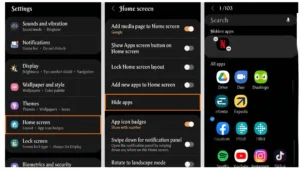
Several brands include a hide tool in their launcher or settings. It costs nothing, and it needs no extra install. On many Samsung phones, follow this path:- Open Settings and tap Home screen.
- Open the Hide apps menu under Home screen settings.
- Pick the apps you want to hide and confirm.
2. A Third-Party Launcher
Older phones or bare-bones Android skins may lack a hide option. A custom launcher fills that gap. Nova Launcher is the classic example. After you set it as your default launcher, do this:- Open Nova Settings.
- Tap App & widget drawers.
- Select Hide apps and tick your choices.
3. Vault and Disguise Apps
Some apps hide other apps behind a fake calculator or a similar cover. You type a secret code, and the real vault opens. The idea sounds clever, but I approach these apps with caution. They ask for broad permissions, and many show ads. Worse, a shady vault app can become the very leak you wanted to prevent. My take: If you go this route, read the permission list and recent reviews before installing. Pick a developer with a clear privacy policy. Never store anything sensitive in a vault app you cannot verify.4. Guest Mode and Multiple Users
Android can create separate profiles on one phone. A guest profile starts clean, with none of your apps or data. To set it up on many phones:- Open Settings and go to System.
- Select Multiple users.
- Turn it on, then add a guest or a new user.
5. Samsung Secure Folder
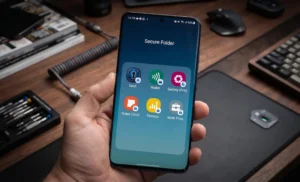
Samsung phones include Secure Folder. It creates an encrypted space for apps, photos, and files, and it needs its own lock. To find it:- Start in Settings and look for the Security and privacy entry near the bottom.
- Tap More security settings.
- Pick Secure Folder, then set up your lock method when prompted.
6. Private Space on Newer Android Versions
Android 15 introduced Private Space. It acts like a locked vault built into the system. Its apps stay out of search, recent apps, and notifications while the space is locked. To set it up on a supported phone:- Open Settings and tap Security & privacy.
- Select Private space.
- Follow the prompts to create a lock and add apps.
How to Choose the Right Method
Match the tool to your situation.- Nosy glances: Use the built-in hide feature.
- Shared phone: Use guest mode or multiple users.
- Serious privacy: Use Private Space or Secure Folder.
- Extra lock on one app: Use a trusted app locker.
Quick Verdict
| Method | Privacy Level | Best For | Rating (1-10) |
|---|---|---|---|
| Built-in hide feature | Hiding only | Quick, casual privacy | 6 |
| Third-party launcher | Hiding only | Customization fans | 5 |
| Vault and disguise apps | Hiding and locking | Users who vet apps carefully | 4 |
| Guest mode / multiple users | Isolating | Lending your phone | 7 |
| Samsung Secure Folder | Isolating and locking | Samsung owners | 9 |
| Private Space (Android 15+) | Isolating and locking | Newer phones, everyday use | 9 |
Pros and Cons
Pros
- Several methods need no payment and only a short setup.
- Built-in tools need no extra install.
- Private Space and Secure Folder give real isolation.
- You can match the method to your actual privacy need.
- Guest mode protects your data when you share your phone.
Cons
- Simple hiding does not stop a determined search.
- Menu paths vary between brands and versions.
- Vault apps can add new privacy risks.
- Launchers may lock hide features behind a paid tier.
- Private Space needs a newer Android version.