Stop Spam Calls on iPhone: Pick the Right Call Screening Mode for Your Life
Most articles about iPhone call screening stop at “here’s how to turn it on.” That misses the real problem. The feature offers three modes, and picking the wrong one causes its own headaches, like missing your doctor’s callback or sitting through another scam pitch.
This guide skips straight to the part that matters: which mode actually fits your daily routine.
iOS 26 introduced call screening to tackle a problem every iPhone owner knows well. Spam calls interrupt meetings, wake sleeping babies, and clutter your Recents list with numbers you’ll never call back.
The feature works on any iOS 26-compatible device, including older models like the iPhone 14 Pro. You don’t need Apple Intelligence or a newer chip to use it. You just need to turn it on, since Apple keeps it disabled by default.
How to Turn On Call Screening
Enabling the feature takes under a minute.
- Open Settings.
- Scroll down and tap Apps.
- Tap Phone.
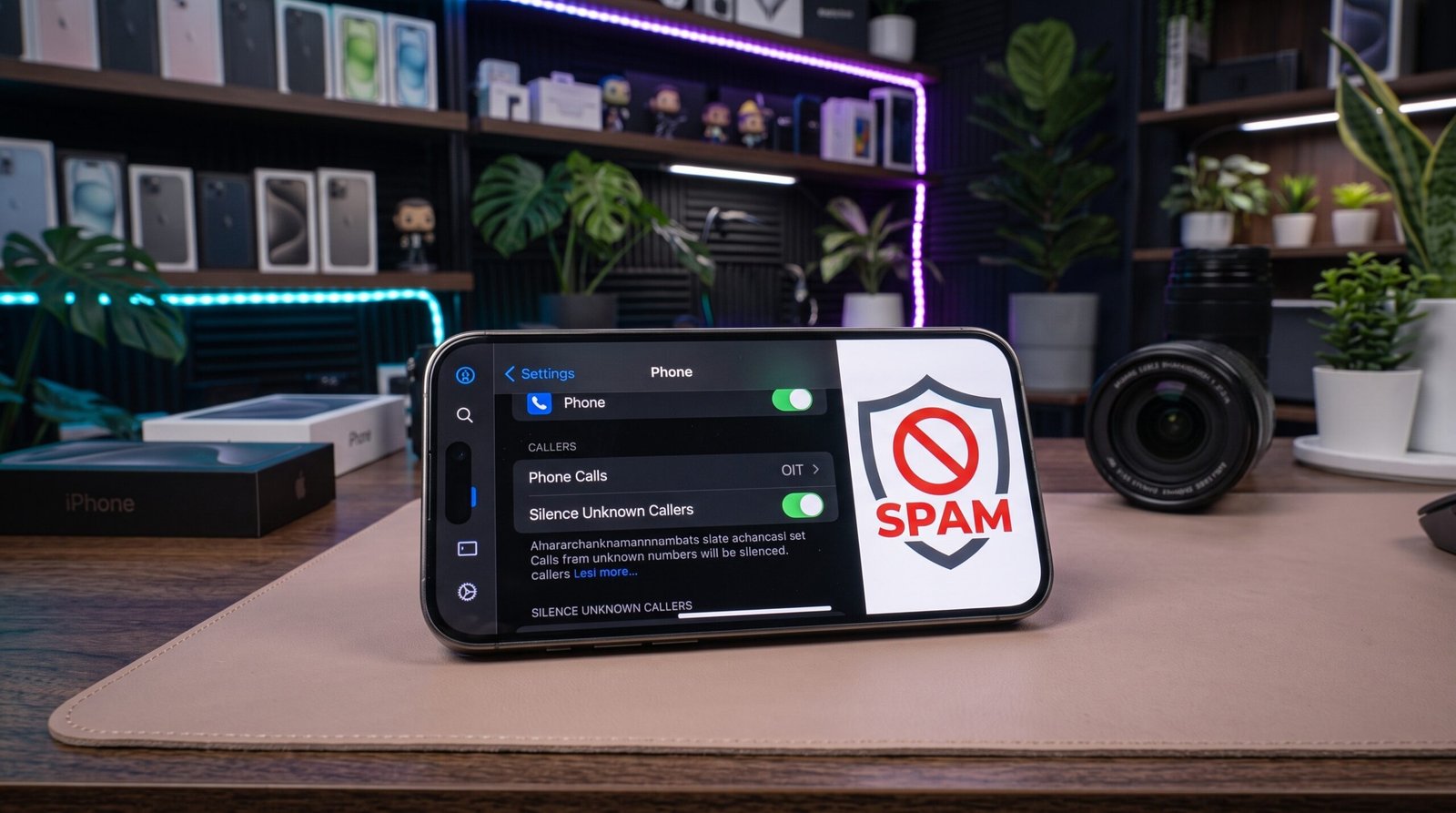
- Find Screen Unknown Callers and choose your preferred mode.
That’s the entire setup. The real decision happens in the next step, choosing which of the three modes actually fits how you use your phone.
Match Your Mode to Your Actual Life, Not a Generic Recommendation
Here’s where most guides give one blanket answer. Your ideal setting depends entirely on your situation.
Choose Never if you’re waiting on an unpredictable call. This keeps the old system intact. Every call rings through, and missed calls still land in your Recents list. Job seekers waiting on interview callbacks, or anyone expecting a delivery update from an unfamiliar number, should stick with this option.
Choose Ask Reason for Calling if you want a smart middle ground. Your iPhone quietly asks unsaved callers why they’re calling, without ever ringing your phone. You’ll get a transcript afterward and decide whether to call back. This mode catches most spam callers, since they rarely bother answering the prompt. It also successfully surfaced a real doctor’s office call during testing, proving it doesn’t just block everything blindly.
Choose Silence if you’ve had enough entirely. Every unsaved number goes straight to voicemail. No prompts, no transcripts, no interruptions. This suits people who almost never receive important calls from new numbers, or who check voicemail regularly enough to catch anything urgent.
The One Scenario Where This Feature Can Backfire
Silence mode carries one real risk. Doctors, schools, delivery services, and even some employers often call from numbers you haven’t saved. Choosing Silence means missing that call entirely, with zero warning.
Ask Reason for Calling avoids this trap. It still filters spam effectively while giving legitimate callers a chance to explain themselves. Anyone nervous about missing something important should start here rather than jumping straight to full silence.
Changing Your Mind Later
Nothing here is permanent. Revisit Settings > Apps > Phone > Screen Unknown Callers anytime and switch modes in seconds.
Some iPhone owners skip this feature entirely and just keep their phone on silent full-time instead, screening every call manually through notifications. That works too, though it demands more discipline than letting the phone filter automatically.
Final Takeaway
Don’t just turn call screening on and accept the default. Match the mode to your actual risk of missing an important call. Ask Reason for Calling works best for most people, balancing spam protection against the small chance of missing something that genuinely matters.