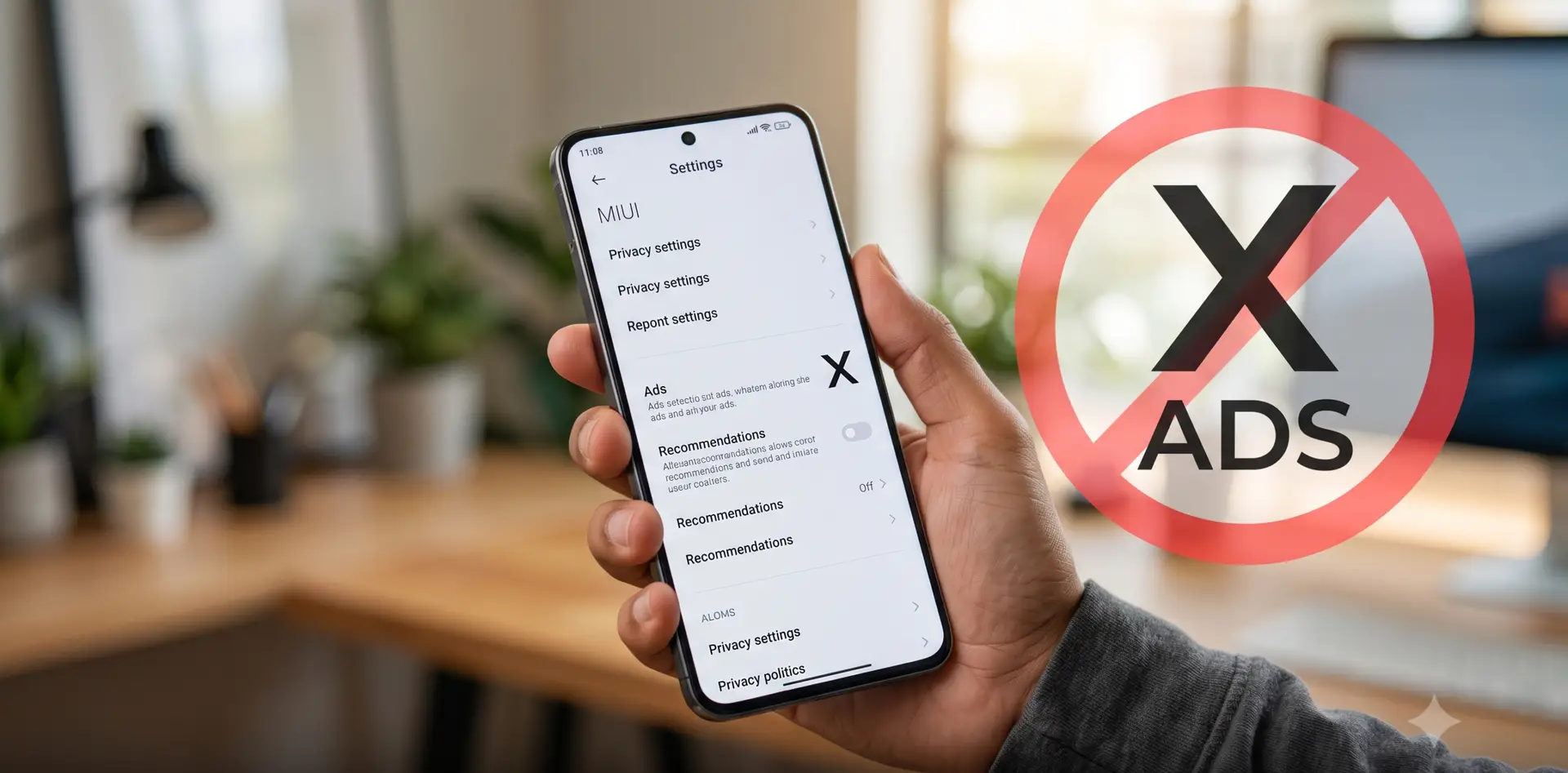
If you own a Xiaomi phone, you already know the frustration: you’re scrolling through your file manager, checking the weather, or just trying to unlock your screen, and suddenly an unwanted ad pops up. The good news is that you absolutely can remove ads on a Xiaomi phone — and you don’t need to root your device or void your warranty to do it.
This guide walks you through every setting you need to change, from the system level down to individual pre-installed apps, so you can finally enjoy a cleaner, distraction-free MIUI experience.
Why Does Xiaomi Show So Many Ads?
Xiaomi built its business around selling phones at aggressively low prices compared to their hardware specs. To make up the difference, the company generates revenue through built-in advertising and services baked into MIUI (and now HyperOS). It’s a trade-off: cheaper hardware in exchange for ads sprinkled throughout the software experience.
The good part is that Xiaomi also gives users the tools to turn most of it off — you just have to know where to look.
Step 1: Disable MSA (MIUI System Ads)
MSA is essentially the backbone of Xiaomi’s in-system advertising. Disabling it is the single most effective step you can take, since it cuts off the main pipeline feeding ads into your device.
Here’s how to do it:
- Open Settings on your Xiaomi phone.
- Tap Passwords & Security.
- Go to Authorization & Revocation.
- Find the app labeled msa and switch its toggle to Off.
- A 10-second countdown will appear. Once it finishes, tap Revoke.
If it doesn’t work on the first try, don’t worry — this is a common hiccup. Simply repeat the process a few times until the toggle stays off.
Step 2: Turn Off Personalized Ad Recommendations
Even after disabling MSA, MIUI can still track your behavior to serve “personalized” ads. Shutting this off stops the tracking at its source.
- From Settings, navigate to Always-On Display & Lock Screen.
- Tap Privacy.
- Select Ad Services.
- Toggle off Personalized Ad Recommendations.
Step 3: Disable Ads in Xiaomi’s Pre-Installed Apps
This is the part that takes a bit more patience, since each built-in app has its own separate ad settings. It’s worth the effort, though — these apps are often where the most intrusive ads show up.
Security App
- Open the Security app.
- Tap the settings (gear) icon located at the top-right of the screen.
- Scroll down and turn off Receive Recommendations.
File Manager
- Open File Manager.
- Tap the three-line menu icon in the top-left corner, then choose Settings.
- Go to About.
- Turn off Recommendations.
Mi Browser
- Open Mi Browser.
- Tap the Profile icon at the bottom-right.
- Open Settings by tapping the gear icon in the upper-right corner.
- Select Privacy & Security.
- Turn off Personalized Services.
Mi Music and Mi Video
The process is nearly identical for both apps:
- Open Mi Music or Mi Video.
- Go to Settings.
- Select Additional Settings.
- Turn off Show Recommendations (or a similarly labeled option).
Step 4: Turn Off Lock Screen Ads (Glance for Mi)
Ever unlocked your phone and been greeted by strange promotional content on the lock screen? That’s the Glance feature at work, and it’s easy to switch off.
- From Settings, navigate to Always-On Display & Lock Screen.
- Tap Glance for Mi.
- Toggle off Turn On.
Step 5 (Bonus): Block Ad Domains with a Private DNS
If ads are still slipping through after all the steps above — or if you’d rather set it and forget it — switching to a Private DNS is a solid extra layer of protection. It works by blocking the domains commonly used to serve ads across your device.
- Go to Settings > Connection & Sharing.
- Select Private DNS.
- Choose Private DNS Provider Hostname.
- Enter one of the following:
dns.adguard.comus.adhole.org
- Tap Save.
Frequently Asked Questions
Will removing ads void my Xiaomi warranty? No. Every step in this guide uses official settings menus provided by Xiaomi. There’s no rooting, no unofficial modifications, and no system tampering involved, so your warranty stays fully intact.
Are there any downsides to disabling ads on my Xiaomi phone? None at all. In fact, turning off ads tends to improve your experience in several ways:
- Saves mobile data — no more bandwidth wasted loading ad content.
- Improves privacy — less background tracking used for ad targeting.
- Slightly better battery life — fewer background processes fetching and rendering ads.
- A cleaner, less cluttered interface overall.
Will ads come back after a MIUI or HyperOS update? It’s possible. System updates occasionally reset certain settings to their defaults. After a major update, it’s a good idea to double-check the settings above to make sure everything is still switched off.
Final Thoughts
Removing ads from a Xiaomi phone isn’t complicated once you know where all the switches are hiding. By disabling MSA, turning off personalized ad tracking, adjusting each pre-installed app, killing lock screen ads, and optionally adding a Private DNS, you can transform MIUI into a much cleaner, ad-free experience — all without rooting your phone or losing your warranty.